English
 Español
 Português
 Français
 Русский язык
 Italiano
 Deutsch
 Nederlands
 لعربية
 한국어
한국어 Japanese
 ภาษาไทย
 Türkçe
 Tiếng Việt
 Bahasa Indonesia
 Hindi
Hindi kazakh
 Uzbek
Uzbek Thai
Thai Farsi
Farsi
Conference All‑In‑One Machine Smart Device For Meeting Collaboration
 2026-08-17
 1386
1386



2026-08-17
1386
A smart choice for multiple application scenarios
Conference All‑In‑One Machine ranks among the most widely adopted business electronics over recent years. It packs audio‑video processing, combined hardware‑software stacks, touch input, voice control and remote data sharing within one single unit. More teams shift toward hybrid work models. You face frequent cross‑site meetings, remote training sessions and client presentations. Traditional projector plus laptop setups bring many small pain points. Cables get tangled. Image quality drops with ambient light. You waste time switching between different devices before every meeting starts.
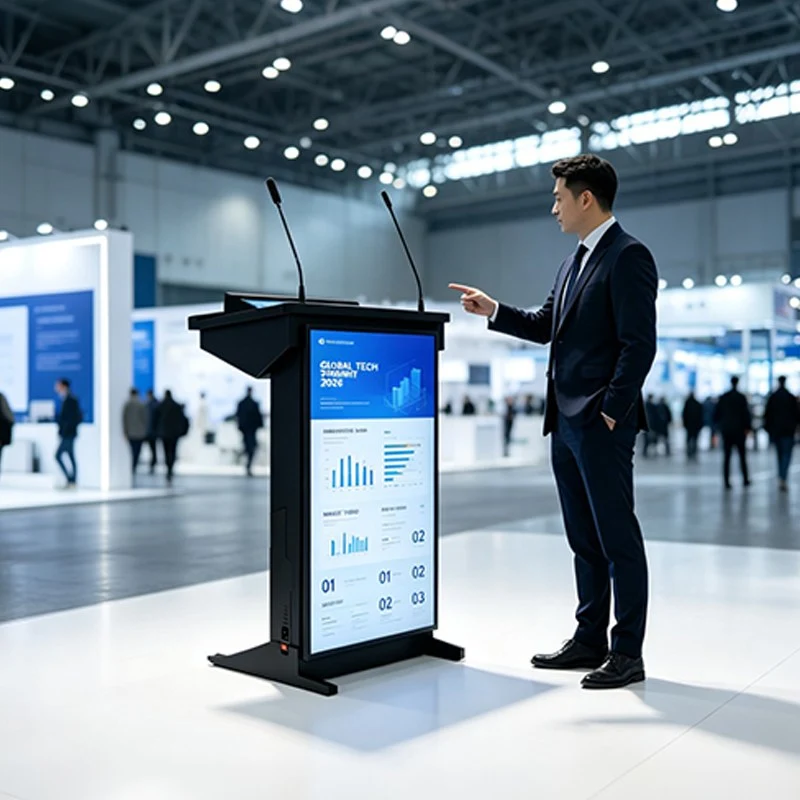
Most buyers picture these machines as room‑based smart hardware. Teams run video calls, slide presentations and content display inside meeting spaces. But real‑world use stretches far past standard meeting rooms. You can place these units inside training classrooms, retail showrooms, public briefing halls and enterprise lobbies. You will read real‑world usage cases, hardware feature breakdowns, comparison data, practical buying tips and full FAQ content below. Every section focuses on actual pain points you meet when deploying meeting hardware for your team.
TOP01
Versatility
Conference all‑in‑one machines deliver more than basic video calls and slide playback. Built‑in hardware includes high‑resolution cameras, built‑in speaker arrays, responsive touch screens and rich physical ports. You connect laptops, USB storage devices, external cameras and sound equipment without heavy adapters.
Video conferencing: Host multi‑party remote meetings, connect branch offices or outside clients directly from the screen.
Online training: Deliver live courses, display courseware and take on‑screen notes during live teaching sessions.
Data presentation: Show project reports, product demo materials and market data charts for on‑site audiences.
Remote collaboration: Shared whiteboard content travels to every participant. Remote team members add notes in real‑time.
Lobby display: Run company introduction videos and announcement content when you do not hold meetings.
Many businesses buy separate devices for each of these jobs. That approach raises total hardware cost and creates extra setup work. One conference all‑in‑one machine covers most daily business tasks for medium‑sized teams. You cut down equipment inventory and simplify room setup work for your staff.
TOP02
Software and application ecosystem
Hardware quality only tells half of the story. Matching software support decides how much value you get out of your conference hardware. Different models carry different built‑in operating environments. Some run Android systems, others use Windows builds. Each option brings different software compatibility limits you need to know before purchase.
Most devices work with mainstream meeting software. You launch your preferred meeting tool directly on the device. No extra laptop required. Certain units accept custom‑built applications for niche industry workflows. You load dedicated software for education, medical briefing or retail product demonstration scenarios.
Android‑based units run most common meeting and whiteboard apps, installation limits apply for third‑party software.
Windows‑version machines support nearly all standard desktop software you already use inside your company.
Built‑in whiteboard tools support handwriting, shape drawing, screenshot capture and content export to USB drives.
Wireless screen casting lets staff send content from phones or laptops onto the large screen without plug‑in cables.
Do not overlook software compatibility. Many users purchase hardware only to find their existing business software cannot run on the device. Confirm operating system specifications against your daily tool stack before placing orders.
TOP03
interactive features
Touch layers sit at the heart of user experience for these machines. Quality touch hardware changes how your team interacts with meeting content. Cheap panels bring lag, missed touch points and inaccurate handwriting. Those small flaws wear down user satisfaction over time.
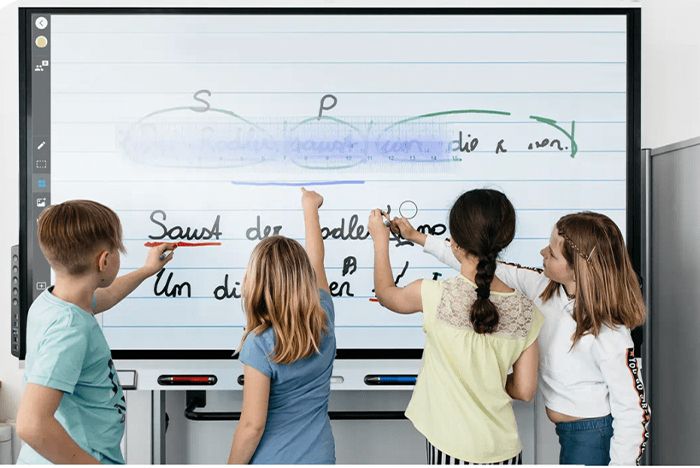
High‑quality conference all‑in‑one machines adopt infrared or capacitive multi‑touch hardware. Your fingers or stylus register fast. You write meeting notes, draw diagrams and mark up imported documents directly on screen. Multiple people can write at the same time. This works well for classroom teaching, group brainstorming and client‑facing product demos.
Gesture control comes on select models. You zoom in on charts with two‑finger movements. You swipe to switch pages. These simple actions lower learning barriers for team members who do not use the equipment every day.
Interactive capability changes meeting output. Teams spend less time passing paper notes or waiting for someone to edit files on a separate laptop. Participants contribute ideas directly onto the shared display. Meeting recording and export functions save your annotated content for later review by absent team members.
| Comparison Item | Conference All‑in‑one Machine | Projector + Laptop Combination |
|---|---|---|
| Image display performance | Self‑lit large screen, clear under normal indoor lighting | Heavily affected by room brightness, picture fades under bright light |
| Interactive operation | Direct touch writing, annotation and multi‑person input supported | No native touch function, you operate only through laptop keyboard and mouse |
| Video conference ability | Integrated camera and microphone, ready for meetings out‑of‑box | Need extra webcam, microphone and speaker hardware |
| Setup preparation time | Power on and start work within seconds | Adjust projection focus, connect multiple cables, debug audio devices |
| Wireless screen cast | Built‑in casting function for phones and laptops | Needs extra casting hardware or software tools |
| Content saving & export | Save whiteboard notes locally or export to USB stick | No native way to save hand‑drawn meeting content |
| Space occupation | Wall‑mount or floor stand, saves desktop space | Projector placement, screen and many cables take extra room |
Enterprise Meeting Rooms: Daily team meetings, project reviews, cross‑branch remote video conferences. You cut down cable clutter and shorten meeting preparation time.
Education & Training Rooms: Classroom teaching, staff skill training, interactive group discussion. Teachers write notes directly on screen and save course content for later review.
Enterprise Lobby & Exhibition Hall: Product show demonstrations, visitor briefing, company culture display. You switch between presentation mode and advertising playback mode.
Retail & Experience Centers: Customer product briefings, interactive product introduction. Sales teams mark up product materials while talking with visitors.
Government & Public Institutions: Internal work meetings, public policy briefings, remote joint work across different departments.
Q1: What size should I pick for my conference all‑in‑one machine?
Match screen size to your meeting room area and number of regular participants. 55‑inch fits small meeting rooms for 4‑6 people. 65‑inch works for 7‑10 participants inside mid‑size rooms. 75‑inch and 86‑inch suit large meeting spaces and training rooms for 12‑20 users. 98‑inch targets big conference halls and exhibition scenarios. Think about viewing distance. Audience members sitting too close see coarse pixel details. People far away struggle to read small‑size text.
Q2: Can I use my existing meeting software on these devices?
Windows‑model machines run nearly all standard desktop meeting software you use today. Android variants support most mainstream Android meeting applications. Some enterprise‑level custom software will not install on Android hardware. Check software system requirements before buying. Share your software list with sales staff so they point you toward suitable hardware models.
Q3: How does wireless screen casting work? Do I need special adapters?
Most conference all‑in‑one machines carry native wireless casting capacity. Laptops, mobile phones and tablets on the same local network push content to the large screen. Certain older laptop hardware may need casting adapters. You can also rely on wired HDMI connection as a stable backup option when network conditions turn poor.
Q4: What kind of installation options are available?
Two common deployment styles exist. Wall mounting fixes the screen flat against wall surfaces. This saves floor space and fits meeting rooms with limited ground area. Mobile floor stands let you roll the whole unit between different rooms. You move the hardware from meeting room to training hall as needed. Confirm wall load‑bearing capacity before wall‑mount installation.
Q5: How about writing and touch performance? Do I need special stylus pens?
Infrared touch models respond to fingers or common passive stylus tools. You do not need dedicated special pens. Capacitive touch screens require capacitive stylus input. Multi‑touch hardware supports multiple people writing simultaneously. Glass surface uses anti‑glare treatment. Reflections reduce when room lighting stays bright.
Q6: Can I save whiteboard meeting notes? What export formats are supported?
Built‑in whiteboard software lets you save hand‑written pages. You export files as image format onto USB flash drives. Some models support PDF export. After meetings wrap up, you hand these files to team members who missed the session. You can clear all content with one click to protect internal meeting information.
Q7: What about after‑sales support and warranty coverage?
Standard warranty covers the whole machine and core screen components. You get technical support for system setup, software debugging and common hardware faults. Screen damage caused by human impact does not sit inside standard warranty scope. Confirm warranty scope and local service response speed before purchase, especially for large‑volume enterprise orders.
Q8: Will the conference all‑in‑one machine replace my laptop completely?
No. These devices act as shared meeting‑focused display and interaction hardware. You still use personal laptops for daily document editing and complex business work. You cast or connect your laptop onto the conference machine when you need to show your work for group discussion.
Many buyers only look at screen size and price. You need to go through these practical points before you lock in your order.
Measure your room size and calculate average number of meeting participants, pick proper screen size accordingly.
Confirm operating system. Match it against meeting software and business applications your team runs every day.
Check installation conditions. Decide between wall‑mount setup or mobile floor‑stand deployment.
Check camera, microphone and speaker specs if you run heavy remote‑meeting workloads.
Check touch points count, anti‑glare glass treatment for bright indoor environments.
Verify export formats for whiteboard notes to fit your team’s meeting record habits.
Read warranty terms, clarify what damage situations fall outside warranty coverage.
Bad hardware selection creates repeated small frustrations for your whole team. You face touch lag, software incompatibility or poor image readability. Spend time matching hardware features to your real‑world work scenarios. You get stable, smooth meeting experience for years afterward.
Conference all‑in‑one machines change how teams run meetings and collaborative work. They cut down messy cable arrangements, remove repeated debugging work before meetings, and open direct interactive input for every participant. Whether you upgrade old meeting‑room hardware or build new training spaces, evaluate these factors to pick hardware that fits your actual business needs.


 Floor 6, Building A, No. 3, North District, Shangxue Science and Technology City, Xinxue Community, Bantian Street, Longgang District, Shenzhen City
 info@szqunmao.com
 +86 15920011166
 +86 15920011166