


 English
 Español
 Português
 Français
 Русский язык
 Italiano
 Deutsch
 Nederlands
 لعربية
 한국어
한국어 Japanese
 ภาษาไทย
 Türkçe
 Tiếng Việt
 Bahasa Indonesia
 Hindi
Hindi kazakh
 Uzbek
Uzbek Thai
Thai Farsi
Farsi
Push‑Pull Smart Interactive Greenboard Collaborative Teaching Display For Classrooms Training
 2026-08-20


2026-08-20
Traditional chalkboards and basic projector screens set hard limits on what you can do during class time. You write notes manually. Content cannot be saved easily. Student input stays limited to verbal answers or paper worksheets. A push‑pull smart interactive greenboard changes this daily routine. It gives teachers a digital surface built for real‑time class work, content sharing and student participation. It works well for regular in‑person lessons, hybrid sessions and group‑based training activities.
This interactive teaching hardware combines physical writing comfort with full‑digital functions. You can write directly on its surface. You can send files from laptops or tablets onto the big display. You can pull work saved on the board back to personal devices. Every function is built around real‑world classroom needs, not theoretical features. Teachers spend less time handling equipment. They spend more time guiding students through learning tasks.
Touch and gesture control. Every user can operate the board surface with simple touch gestures. You zoom in on diagrams. You move text blocks around. You select objects without picking up a separate mouse or remote. Both teachers and students can perform these actions standing in front of the display. Operation feels natural and requires very little training for new users.
Multi‑user collaborative work. Multiple people can write, draw or add notes on the board surface at the same time. Several students can step forward and solve math problems side‑by‑side. Group brainstorming sessions move faster. Learners get direct hands‑on time with lesson content instead of only watching from their seats.
Push‑pull content transfer interface. This is the core function of this hardware. Push sends local files, images or screen content from your phone, laptop or tablet straight onto the large board. Pull exports board‑based work back to your personal device. You do not rely on USB drives or complicated network file transfers between devices during class hours.
Multi‑format content playback. The board renders text, static images, short video clips and built‑in interactive learning modules. You run full lesson sequences on one single screen. Switch between textbook excerpts, demonstration videos and student exercises without switching different external players.
Complete annotation toolset. Highlight key paragraphs. Draw charts and sketch diagrams. Work through calculation steps right over imported course materials. You can erase partial marks or clear the whole screen in one click. All annotations sit on top of base content without altering your original source files.
Session recording capability. Capture full class sessions including screen content, annotations and spoken audio. Save these recordings for later review. Absent students can catch up on missed lessons. Teachers can replay sessions to check lesson flow and adjust future teaching plans. Recorded files can export for local storage or cloud upload.
Cloud storage integration. Connect to mainstream cloud storage services. Teachers pull prepared lesson resources from cloud folders directly onto the board. Finished class work can save straight to cloud space. You access your teaching material from different rooms or different campus locations without carrying local storage media.
Built‑in interaction analytics. The system collects usable data on how students interact with displayed content. It tracks participation hot spots and common interaction patterns. Teachers review these outputs to spot which learning tasks draw more student attention. You adjust lesson pacing and material selection based on real class behaviour instead of guesswork.
Flexible teacher‑led configuration. Teachers adjust display brightness, tool bar layout, default pen thickness and colour sets. Each educator sets working conditions matching their own teaching habits. Preset profiles can save and load for different subjects such as math, art or language classes.
Broad educational software compatibility. The greenboard works with most widely used education applications. Install subject‑specific teaching apps, quiz tools and classroom assessment software. You extend board capability without being locked into one single closed software ecosystem.
Higher student participation. Interactive operations pull student focus toward lesson content. Hands‑on screen work keeps learners engaged through long class periods. Students retain more knowledge when they take active part instead of passively listening to lectures.
High‑level workflow flexibility. Push‑pull device connection removes many workflow barriers. Teachers bring their own lesson files from personal devices. Students send their assignment drafts onto the main board for group review. Lessons flow smoothly regardless of which hardware each person brings into the classroom.
Clearer teacher‑student communication. Work appears on a large shared visual surface. The whole class sees annotations, edits and student contributions. Misunderstanding over verbal‑only explanations drops. Every group member follows the same visual reference point during discussions.
Works for mixed learning modes. It fits standard physical classrooms. It also supports hybrid teaching setups where remote learners join in. Recorded lessons and cloud‑shared board content support fully remote learning scenarios. One hardware covers multiple teaching modes your institution may use.
K‑12 education classrooms for daily subject teaching and group activities
Higher‑education lecture halls and seminar rooms for university‑level courses
Corporate training spaces for employee skill workshops and group briefings
This hardware reshapes how educational content gets presented and processed. Lessons become more lively. Group collaboration becomes simple to organise right inside your physical teaching space.
| Function Item | Classroom‑Level Practical Value | Hardware‑Software Requirement Note |
|---|---|---|
| Multi‑user simultaneous touch | Enable multiple students to contribute on one shared display | Supports multi‑point infrared touch; no special stylus required |
| Push‑pull content transfer | Fast file exchange between personal devices and main teaching board | Local area network connection; no public internet mandatory for basic transfer |
| Lesson session recording | Produce review materials for absent learners and teacher self‑check | Local storage space or connected cloud account required for file saving |
| Cloud storage integration | Access teaching resources across different classrooms | Depends on your existing cloud service account settings |
| Interaction analytics output | Supply objective reference for teachers to adjust lesson plans | Data stays inside local device; you control data export scope |
| Third‑party education software support | Expand teaching functions with your already‑used applications | Some software needs licence purchased separately by end‑user |
In K‑12 classrooms, math teachers let several students come forward and write solving steps on the board surface together. Language teachers import reading texts and add real‑time annotation for vocabulary points. Recorded class sessions go to students who miss school due to illness. Teachers pull student homework files from tablets onto the big screen for collective comment.
Within higher‑education settings, seminar groups run case‑study discussions. Participants push their research notes onto the board. They edit content together during group analysis. Lecture professors save whole lecture recordings and share them with large student groups through cloud channels.
For corporate training, instructors use this greenboard during employee skill workshops. Trainees push their practice results for group review. Facilitators run interactive quizzes and mark feedback directly over displayed materials. Session recordings serve as reference for new staff who join training later.
Check actual usable surface size against your classroom wall space. Confirm viewing distance for back‑row students.
Confirm local network conditions. Push‑pull content transfer works best under stable local area network.
Count how many teachers will use this board. Prepare short hands‑on practice sessions for smooth early adoption.
Plan storage space for recorded lesson files. Decide whether you use local disk or cloud storage services.
List your existing frequently‑used education software. Verify compatibility before bulk‑order deployment.
Q1: Do students need special pens to write on the push‑pull smart interactive greenboard?
A1: You can write with bare fingers. Standard passive stylus also works. You do not need expensive active‑power pens for regular annotation work.
Q2: Does push‑pull content transfer require public internet access?
A2: Basic push‑pull file exchange runs over local LAN network. Public internet is not required for sending and receiving content between devices on same local network. Cloud‑related functions will need internet connection.
Q3: How many users can write on the board at the same time?
A3: Standard models support multiple‑point simultaneous touch input. Exact supported points depend on specific hardware version. Contact us with your project needs for precise parameter data.
Q4: What format do recorded lesson files save in?
A4: Recordings save as common video file formats. Files can play on regular computers without special dedicated player software.
Q5: Can I use this board for hybrid classes with remote online participants?
A5: Yes. Board content can feed into video conference software. Remote attendees see all annotations and real‑time edits. You need your own conference system and network bandwidth for remote participant connections.
Q6: Will my existing education software run directly on this greenboard?
A6: Most mainstream education applications work normally. Some special niche software may need compatibility checking. Share your software list during early project consultation so we can complete assessment for you.
Q7: Can teachers customise tool layout for different subjects?
A7: Yes. You adjust pen colour, toolbar position and default tool sets. Save different profiles for math, language or art lessons and load them quickly.
Q8: Where do interaction analytics data store?
A8: Interaction data stores locally on the device by default. You decide whether to export these records. Data will not upload externally without your manual operation.
Q9: Is it possible to export annotated board content as PDF documents?
A9: Yes. Finished board pages can export to PDF format. Teachers distribute these PDF notes to students after class ends.
Q10: What kind of installation does this interactive greenboard require?
A10: It supports wall‑mount installation. Some project scenarios use mobile floor stands. Confirm wall load‑bearing capacity or stand specifications before site construction work.
The push‑pull smart interactive greenboard changes daily teaching workflows for classrooms, higher‑education rooms and corporate training sites. It reduces technical friction for content sharing and group work. If you plan to upgrade classroom display hardware for your institution, share your site size, user quantity and main teaching requirements. We can provide targeted configuration suggestions for your project.
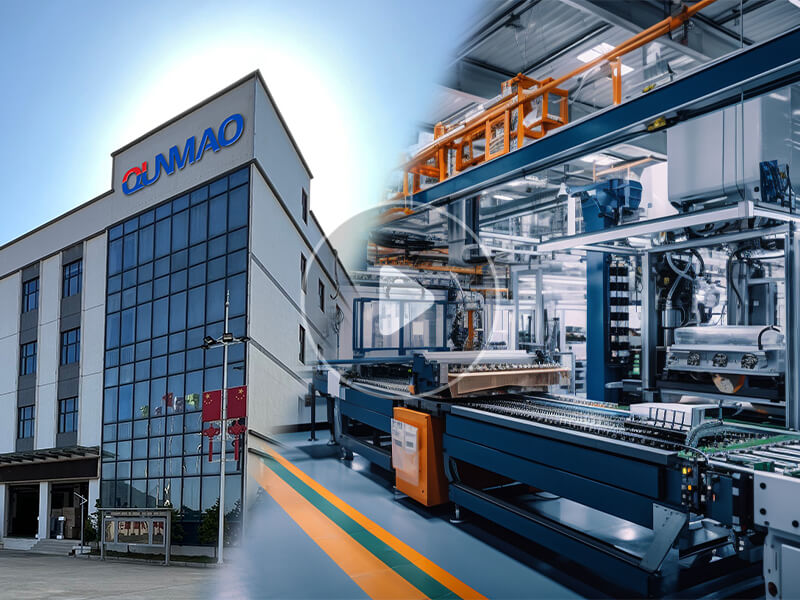
Qunmao Interactive Display Source Factory | OEM/ODM Manufacturing & Supply
August 08, 2026
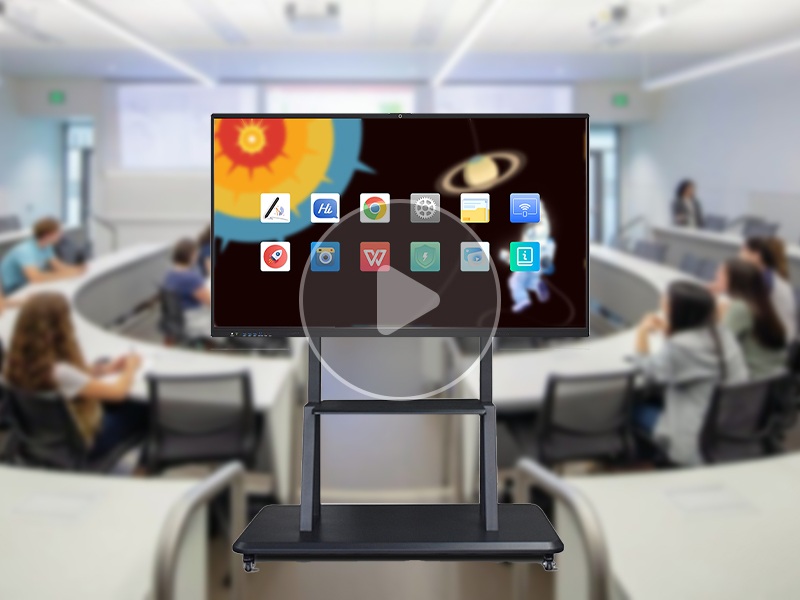
Real-Time Annotation Interactive Flat Panel | Smart Display
August 08, 2026
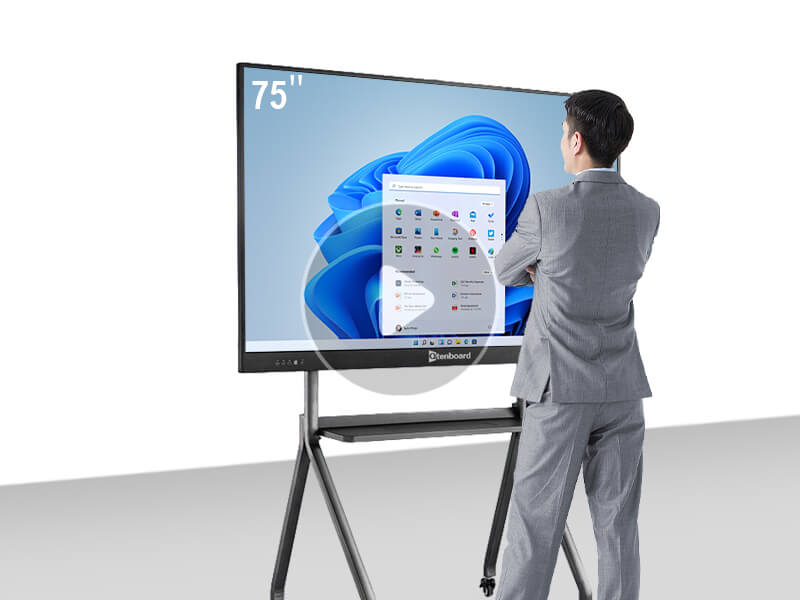
Qtenboard 4k uhd 55-110 inch android & windows systems 40 point touch interactive flat panel
August 08, 2026
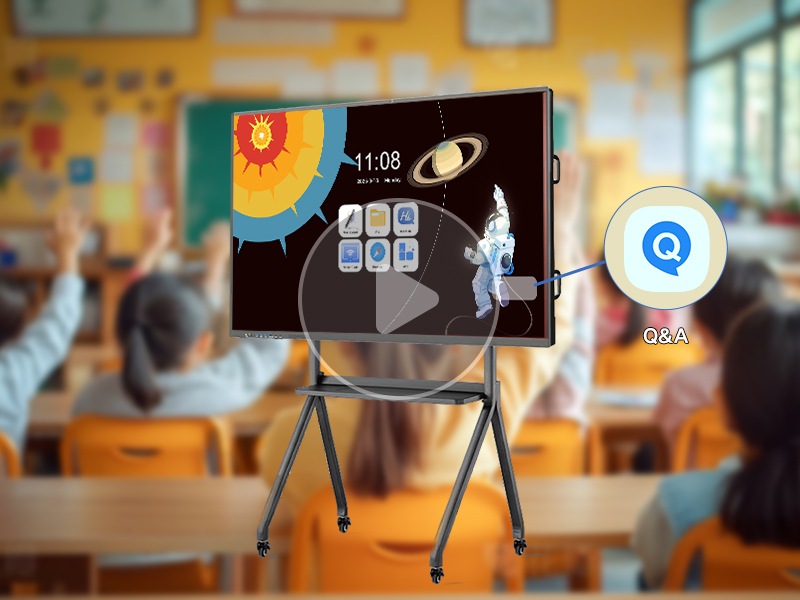
Interactive whiteboard Ai feature 1: Question and Answer
August 08, 2026
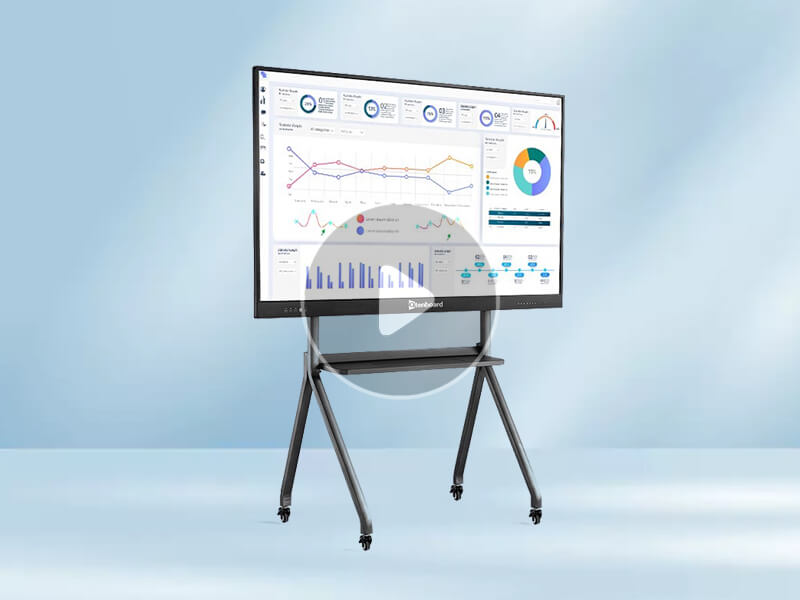
Qtenboard Smart board interactive flat panle Operation Video
August 08, 2026
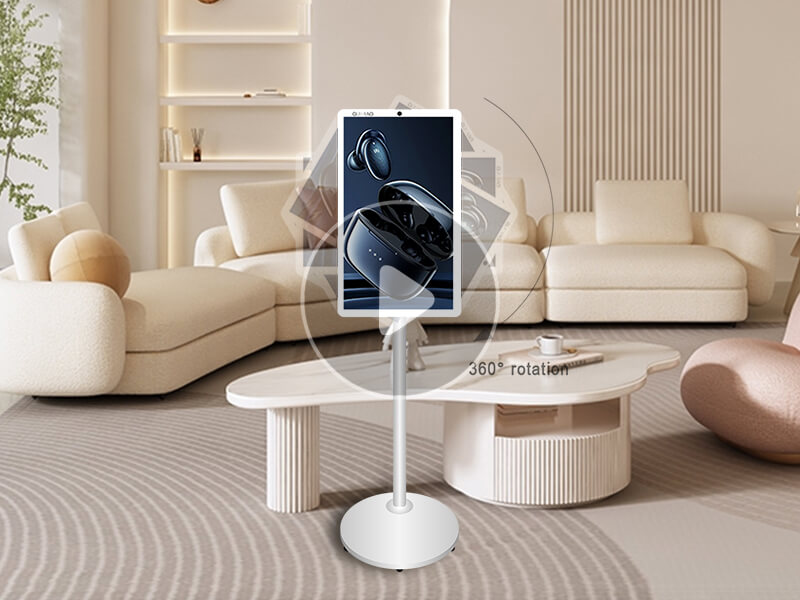
Stand by me portable touch screen mobile smart tv on stand 21.5 23.8 27 32 Inch lcd display
August 08, 2026

 Floor 6, Building A, No. 3, North District, Shangxue Science and Technology City, Xinxue Community, Bantian Street, Longgang District, Shenzhen City
 info@szqunmao.com
 +86 15920011166
 +86 15920011166


