


 English
 Español
 Português
 Français
 Русский язык
 Italiano
 Deutsch
 Nederlands
 لعربية
 한국어
한국어 Japanese
 ภาษาไทย
 Türkçe
 Tiếng Việt
 Bahasa Indonesia
 Hindi
Hindi kazakh
 Uzbek
Uzbek Thai
Thai Farsi
Farsi
All‑in‑One Interactive Flat Panel Interface, Features Real‑World Use Cases
 2026-08-20


2026-08-20
Many buyers focus only on screen size or price when selecting interactive flat panels. Available physical ports and hardware expandability directly decide whether the device fits your real‑world project. An all‑in‑one interactive flat panel packs display, touch input, audio system and multiple connection ports into one single unit. It cuts extra peripheral hardware for meeting rooms, classrooms and public display sites. The following content walks through front‑panel ports, rear‑panel connections, OPS expansion slot, core functions, application scenarios and practical advantages for your procurement reference.
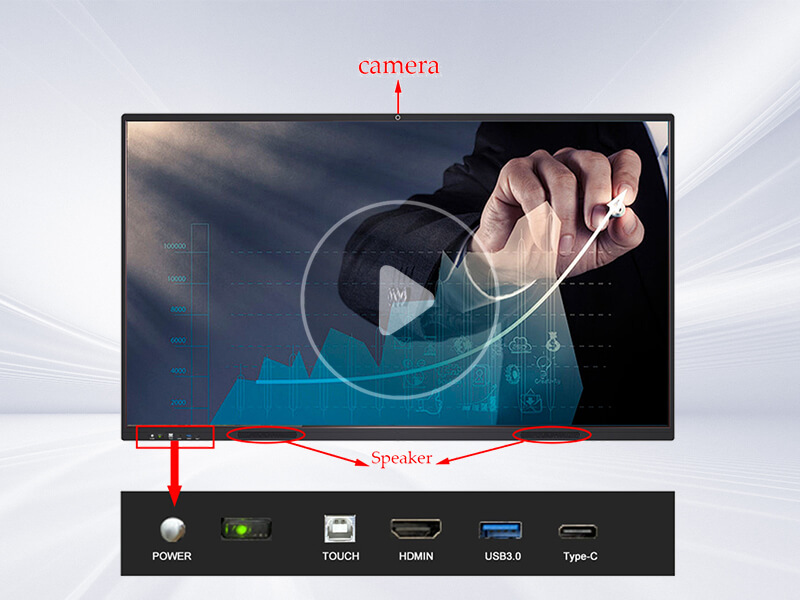
Product demonstration videos show every port layout on the complete unit. You can observe front‑side accessible interfaces, built‑in camera module, speaker units and rear‑side expansion terminals including the dedicated OPS slot. Checking interface details before purchase avoids post‑delivery connection troubles for your whole project.
Front‑panel components are designed for quick plug‑and‑play operation. Teachers or meeting participants do not need to walk around to the back of the large screen for temporary device connection.
Integrated HD camera. Mounted on the upper front frame. It captures video feeds for remote video calls and on‑site content recording. You do not need to buy and fix an external webcam separately. The camera module aligns with normal standing‑user height for natural face‑to‑face remote communication.
High‑performance built‑in audio system. Matching speakers deliver clear voice output during video conferences, lesson video playback and presentation playback. Voice volume covers standard‑size meeting rooms and classrooms without extra external speakers for basic use cases.
Front accessible interface group. Commonly used ports sit on the front frame. You plug in USB flash drives, temporary laptops and other mobile devices quickly. This setup brings big convenience for frequent ad‑hoc device switching in busy classrooms or meeting spaces.
The rear side holds richer connection terminals for fixed‑installation wiring. Most long‑term static device connections use these rear ports to keep front‑side appearance neat and tidy. The external OPS interface deserves special attention for long‑term project value.
Multiple video input ports support signal sources from desktop hosts, document cameras and other peripheral equipment. You set fixed wiring during installation phase, and cables stay hidden behind the screen.
Audio in‑out ports connect to external power amplifiers or larger speaker systems for large‑size lecture halls. You expand audio output capacity when built‑in speakers cannot cover wide‑space requirements.
Network ports and additional USB terminals support permanent connection of fixed peripherals inside your room.
OPS expansion slot. This is a key upgrade‑friendly design. You install an OPS computing module directly into this slot. When computing performance falls behind years later, you swap out the OPS module instead of replacing the whole expensive interactive panel. It lowers total long‑term ownership cost for schools and enterprises with large‑quantity deployments.
Well‑arranged front and rear interface sets remove most connection barriers. End‑users finish device linking without deep technical knowledge. Installation technicians also complete on‑site wiring work with higher efficiency.
Multi‑point touchscreen. Multiple users operate the screen surface at the same time. Several participants write notes, draw graphs or mark content side‑by‑side. This behaviour pushes real‑time group collaboration forward during classes or brainstorm meetings.
4K high‑definition display. Most mainstream models deliver native 4K resolution. Texts look sharp. Images and presentation videos show fine details. Viewers sitting at different angles inside the room can read screen content comfortably.
Cross‑platform compatibility. The panel works with Windows, Android and iOS operating systems. Phones, tablets and laptops running these systems can cast screen or connect via wired ports. Your existing personal devices can link to the panel without system‑restriction worries.
Built‑in digital whiteboard. The native whiteboard application supports free drawing, shape insertion and text input. Teams put forward ideas and organise thought frameworks together on the big canvas. You save whiteboard pages locally or export them for later review.
Full collaboration toolset. Screen sharing, video conference access and cloud‑storage linking come together in one machine. Remote team members join local discussions smoothly. Generated meeting or class content can sync to cloud space for later access.
Simple daily operation. Menu logic follows common consumer‑device habits. New users spend minimal time learning basic operations. Training burden for teachers and enterprise staff gets reduced.
Education‑software ready. It runs many popular education applications. Teachers deploy quiz modules, courseware tools and subject‑teaching software to enrich in‑class activities.
Durable hardware build. Panels for commercial and education use go through strict ageing testing. The touch layer resists frequent repeated taps and scratches. The whole unit stands up to heavy daily use year after year.
Education. Teachers launch courseware, run online quizzes and organise group project work on screen. Visual interactive content draws student attention during daily lessons. Both regular classrooms and lecture rooms benefit from this hardware.
Business & corporate meetings. Teams run client presentations, internal briefings and brainstorm sessions. Local and remote participants join one shared working space to speed up decision‑making progress.
Healthcare industry. Medical training sessions display medical images and case materials. Staff carry out group case discussion. For patient‑education scenarios, providers show explanatory pictures to improve doctor‑patient communication quality.
Public‑space entertainment and display. Deploy inside lobbies, exhibition halls and activity centres. Play mixed content including pictures, short videos and interactive guidance modules for visiting crowds.
| Feature Item | On‑Site Practical Value | Interface & Hardware Related Notes |
|---|---|---|
| Multi‑user touch input | Enable group writing and joint content editing | No extra accessories needed; touch function works on screen surface directly |
| 4K high‑definition display | Deliver sharp text and image for presentations and teaching materials | Use HDMI 2.0 or higher port to receive full 4K signal from source device |
| Cross‑OS connection support | Connect Windows, Android, iOS devices flexibly | Support wired USB‑C, HDMI and wireless casting modes |
| OPS expansion slot | Upgrade computing module without replacing whole screen | OPS module sold separately; check slot specification before buying spare parts |
| Front‑side quick‑access ports | Fast temporary plug‑in for flash drives and visiting laptops | Mainly for short‑term connections; long‑term wiring should use rear interfaces |
| Built‑in camera & speaker | Complete basic video conference without extra peripherals | Large‑hall projects may need external audio system via rear audio port |
High‑impact engaging content delivery. Visual interactive operations keep audience focus. Teaching sessions and business presentations gain better overall effectiveness compared with static projection equipment.
Real‑time teamwork support. Multiple people edit shared content together. Remote participants join collaborative work. Distance no longer creates hard barriers for group brainstorming.
Good accessibility. Touch‑based operation lowers technical barriers. Users finish operations with simple taps instead of complex mouse‑and‑keyboard workflows.
Hands‑on interactive experience. Learners and meeting attendees take part in content processing actively. Knowledge absorption goes up through practical screen interaction.
Paper‑saving working pattern. Digital annotations, saved whiteboard pages and electronic handouts cut physical paper consumption for daily teaching and office work.
Interface matching is one of the most easily overlooked factors during procurement. Even excellent core performance cannot deliver good results if ports cannot link your existing equipment. Keep these points in mind when comparing different models.
List all signal‑source devices you plan to connect, such as document cameras, desktop hosts and conference peripherals. Verify whether target IFP carries corresponding ports.
Confirm whether you need OPS expandability. Long‑cycle‑use projects like schools gain obvious cost advantages from OPS‑supported units.
Evaluate room size. Judge if built‑in camera and speaker can cover your space, or you need external audio‑video accessories.
Check wireless casting compatibility with phones and laptops your team normally uses.
Look into physical installation conditions. Wall‑mount weight requirement or mobile stand dimensions should match your site environment.
Q1: What is the difference between front‑panel interfaces and rear‑panel interfaces on an interactive flat panel?
A1: Front‑panel ports serve temporary quick‑plug scenarios for visiting laptops or USB drives. Rear‑panel ports are for fixed long‑term wiring. Rear ports keep cables hidden to maintain neat appearance in classrooms and meeting rooms.
Q2: Can I add Windows system after buying an Android‑based interactive flat panel?
A2: If the unit comes with an OPS slot, you install an OPS Windows module to get Windows system. Models without OPS slot cannot add Windows computing module later.
Q3: Do I have to use external camera for video conference calls?
A3: Units with built‑in HD front‑camera complete basic video calls directly. For ultra‑large meeting rooms requiring wider shooting angle, you can still connect higher‑spec external cameras via USB port.
Q4: Can multiple people write on screen at the same time?
A4: Yes. Multi‑touch interactive flat panels support simultaneous input from several users. Exact supported touch points vary across different hardware versions, confirm parameters for bulk‑order projects.
Q5: Can Windows‑based software run directly under Android mode on the IFP?
A5: Native Windows software cannot run on Android system. You switch to OPS Windows module when you need to launch Windows‑only programs.
Q6: What should I do if built‑in speaker volume is not loud enough for my large lecture hall?
A6: Use rear‑panel audio output port to link external power amplifier and speaker sets. This expands audio output capacity for big‑space sites.
Q7: Is special stylus required for writing on interactive flat panel?
A7: Most models support bare‑finger writing. Passive stylus can also be used. You do not need expensive active power‑supplied pens for regular annotation work.
Q8: Can whiteboard content be exported and shared?
A8: Yes. You export whiteboard pages as image or PDF files. Save files to USB drive or cloud storage for distribution after class or meetings.
Q9: Does OPS module include inside the standard interactive flat‑panel package?
A9: Normally OPS module is sold separately. The interactive flat panel only reserves the OPS physical slot. Read product specification carefully before placing orders.
Q10: What installation ways are available for all‑in‑one interactive flat panel?
A10: Wall‑mount installation is the most common choice. Mobile floor stands are another option for rooms needing frequent position adjustment. Confirm wall bearing capacity or stand load‑bearing parameters before construction.
Interface configuration defines real‑world usability of all‑in‑one interactive flat panels. Front‑side quick‑access ports, rich rear expansion terminals and OPS upgrade slot bring flexibility for short‑term use and long‑term device iteration. Such hardware fits education, corporate business, medical training and public‑display environments. If you are comparing models for your upcoming project, share your site size, existing peripheral equipment list and expected function demands. We can sort out targeted configuration suggestions for your reference.
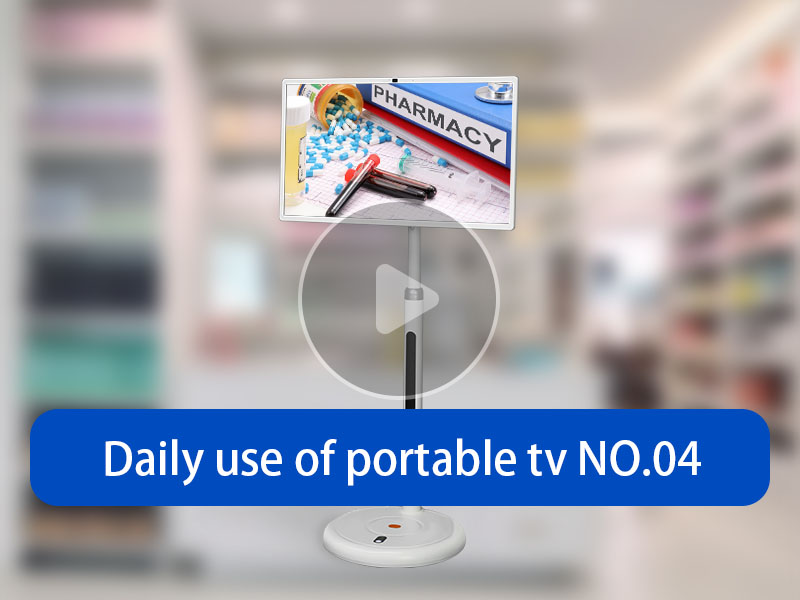
Stand By Me 4G Network
August 08, 2026
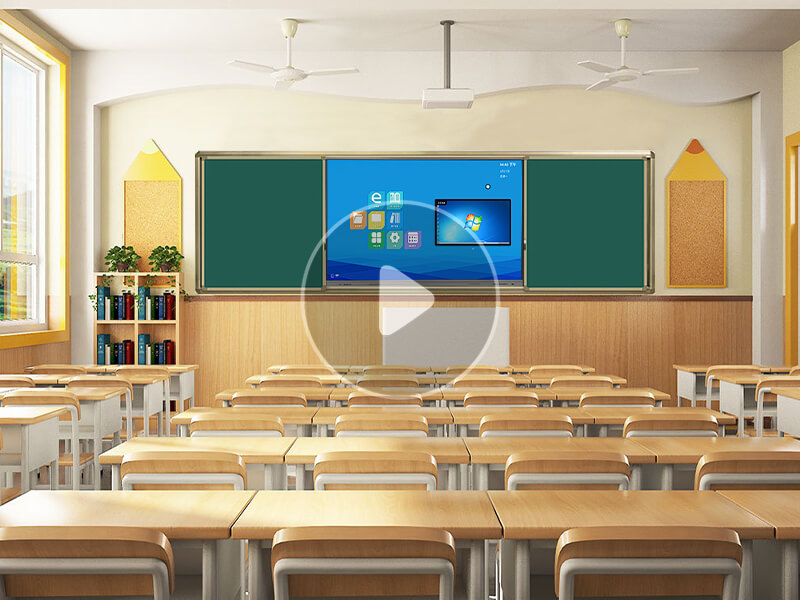
Qtenboard Sliding Chalkboard Smart Blackboard interactive Green Board for Classroom Teaching
August 08, 2026
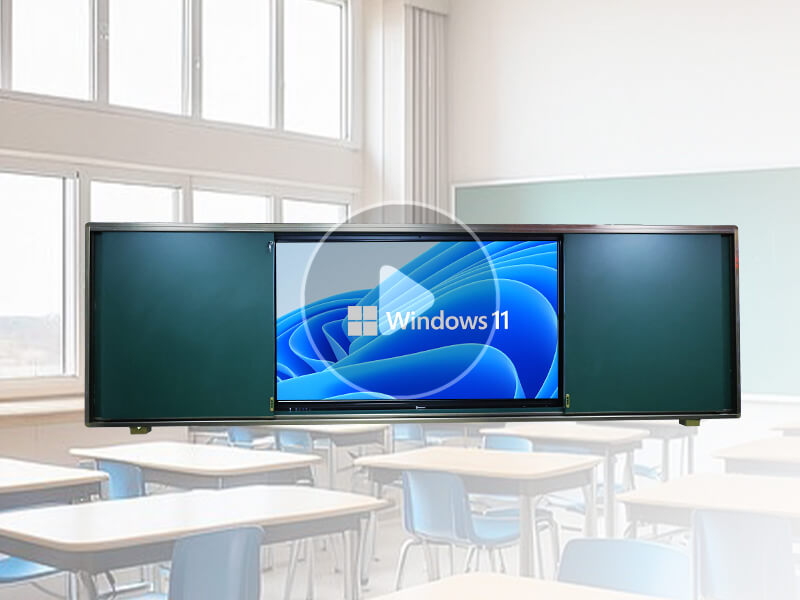
Push‑Pull Smart Interactive Greenboard Collaborative Teaching Display For Classrooms Training
August 08, 2026
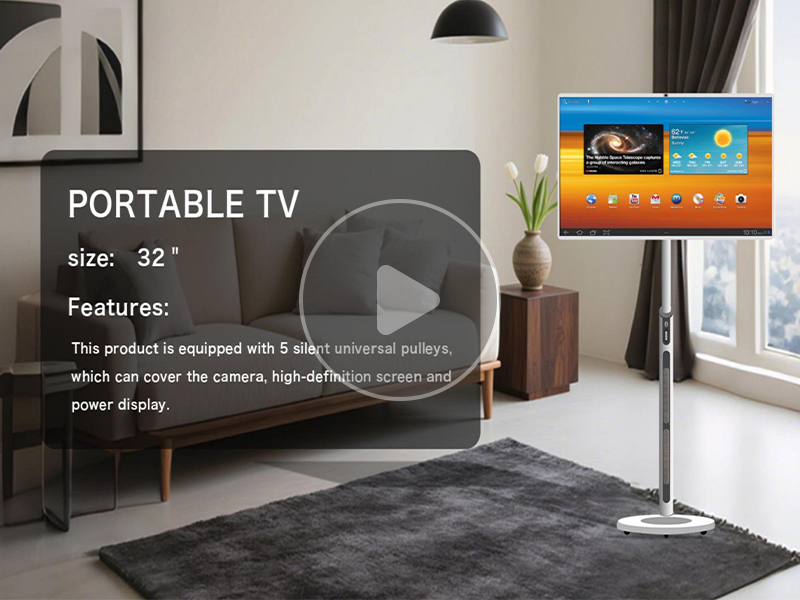
32-inch portable tv is now available! Dual speakers, surround sound, hidden camera, unlimited energy storage power supply
August 08, 2026
All‑in‑One Interactive Flat Panel Interface, Features Real‑World Use Cases
August 08, 2026
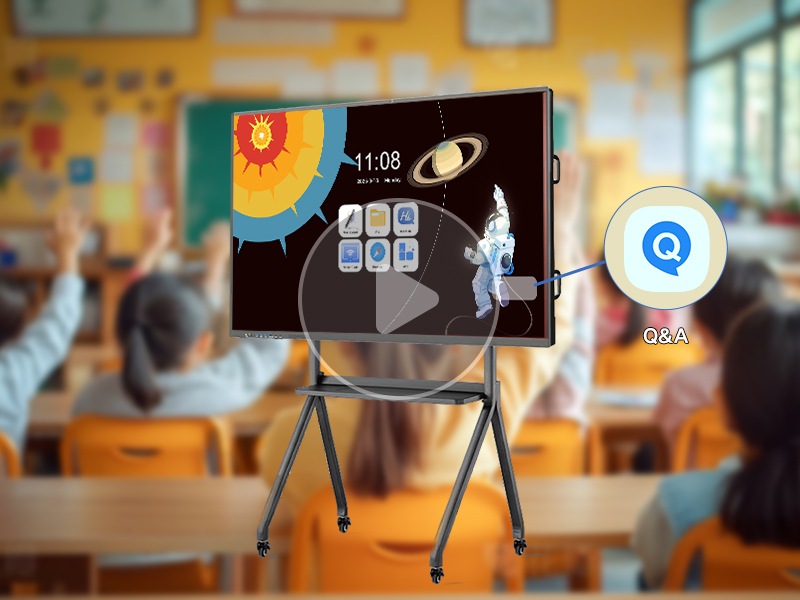
Interactive whiteboard Ai feature 1: Question and Answer
August 08, 2026

 Floor 6, Building A, No. 3, North District, Shangxue Science and Technology City, Xinxue Community, Bantian Street, Longgang District, Shenzhen City
 info@szqunmao.com
 +86 15920011166
 +86 15920011166


